
Custom Notifications will appear for all users associated with a community every time they login to CLI Engage. These notifications should be used by Community level users to send out communication and reminders to their community.
Instructions:
Step
1
Uploading a Community Logo:
The My Community/District Tab can be found under Administrative Tools
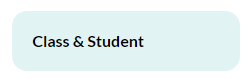
Select Class & Student:
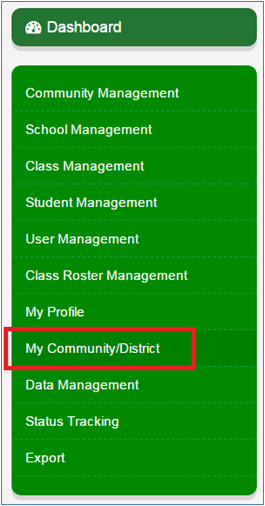
Select My Community/District:
Step
2
Upload Logo
Search for the logo on your desktop by selecting Browse
Locate the logo file on your device and select Open:

Scroll down and select Submit:
Select the preview icon to view the uploaded logo:
Step
3
Create a Custom Notification:
Custom Notifications will appear for all users associated with a community every time they login to CLI Engage. These notifications should be used by Community level users to send out communication and reminders to their community.
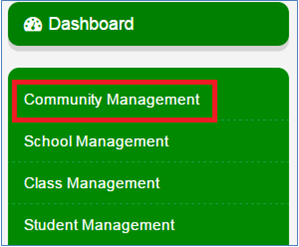
Select Community Management:
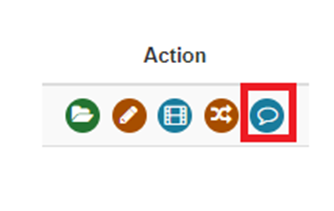
Select the icon:
Step
4
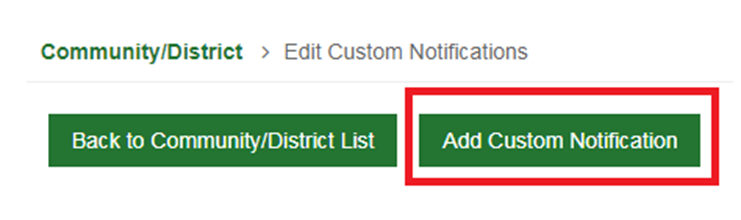
Select Add Custom Notification:
Step
5
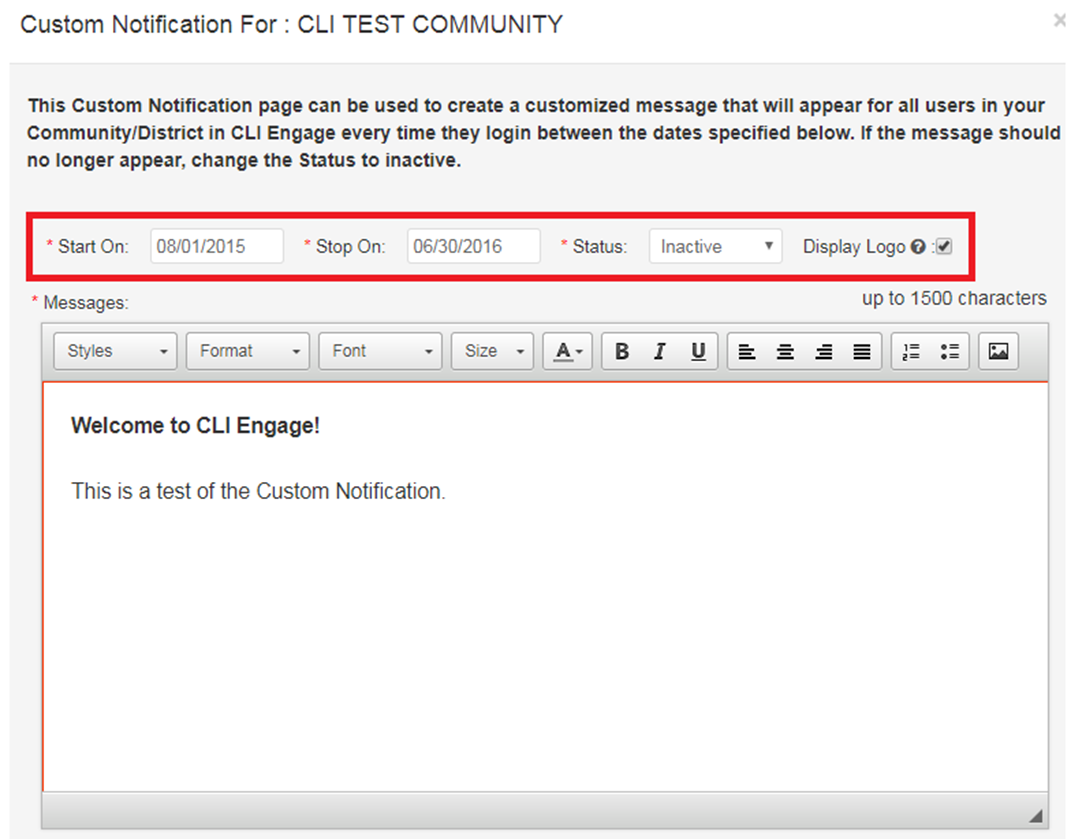
Select the Start On & Stop On dates, in addition to the Status and Message:
Step
6
After completing all fields and entering the message, scroll down to select Submit:
Step
7
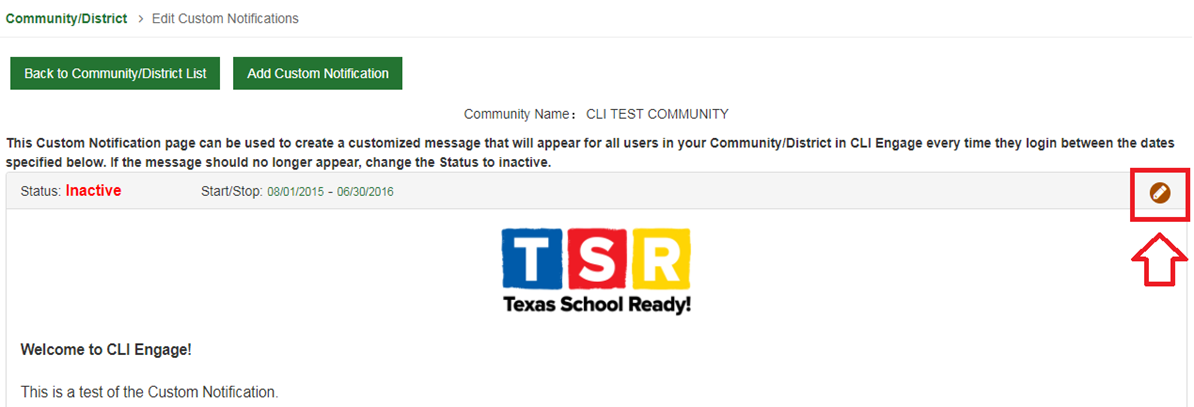
After submitting, a Custom Notification can be edited by clicking the pencil icon:
This document was last modified on: August 27, 2021